

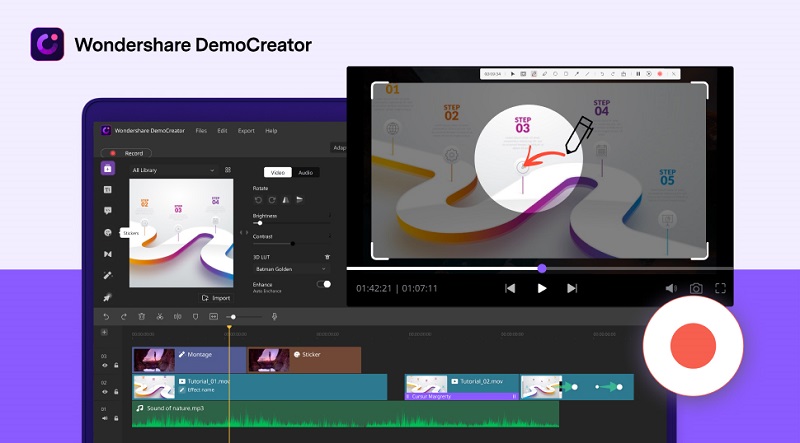
Education, as a process of knowledge transfer, has always been advancing with the discovery of new technologies. Currently, the education system has shifted away from the conventional blackboard towards more student-friendly technology. Video-based learning is now taking over text book-based learning. Many educational technology tools can be used in instruction and one such useful tool is screen cast. A screencast is a digital video and audio recording of what is occurring on the presenter’s computer screen and can be used to create information-rich multimedia presentations. In a screencast, the presenter can record all the screen activity, and audio can be recorded simultaneously or afterwards. It is beneficial for instructional formats such as tutorials, demonstrations, narrated PowerPoint presentations etc.
Table of Contents
Introduction to Wondershare DemoCreator, an application for screen recording and video editing
Wondershare DemoCreator is a powerful software that not only lets you record your screen but you can also edit your video in the same software. It is all-in-one multipurpose software. This editor has full-fledged features and effects that will only help you to improve the content of your video and make it more presentable.

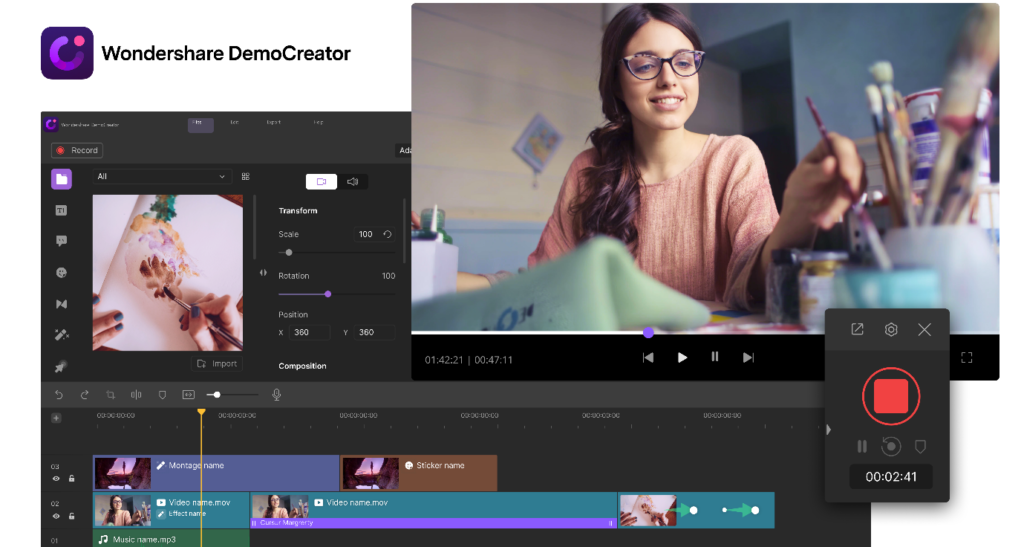
Let’s look at a few features that Wondershare DemoCreator offer:
• Recording your computer screen – The key part of this software is that you can record your entire screen. It is beneficial for vloggers, teachers, and gamers. Now you can also add real-time Screen drawing when recording.
• Video recording through Webcam – The software lets you capture your face simultaneously recording the screen.
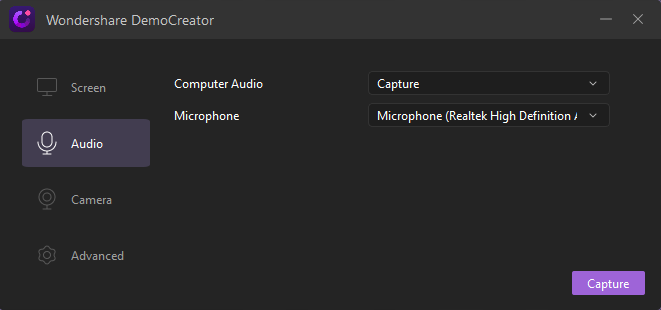
• Recording through audio – Wondershare DemoCreator records your audio as well. By default, both the computer audio and microphone will be recorded, but you can select either.
With screen recording, webcam recording and audio recording, Wondershare DemoCreator allows you to edit your videos as well. By importing the media files to the timeline, you can edit your videos using the various effects and features it offers. From crop and split, annotation effects, green-screen effects, cursor effects etc. the variety is endless, and it can increase the quality content of your video.
How to Make a Screencast?
Step 1 – Make a plan and write a script
Before you begin making your screencast video, you must have a plan. Take some time off at first to decide the topic you would select for your screencast. The topic should be relatable and with sync with your idea. Once you have the topic in mind, prepare a written script. Scripting down the content is essential to have a free-flowing screencast. Write down the script somewhere, and practice it. Once you are ready with your idea and plan it’s time, to begin with, the recording process.
Step 2 – Install screen recording and video editing software
To prepare your screencast, it is crucial to download the screencast tool that has a built-in editor. Wondershare DemoCreator is a great screen recorder for pc. There are many editing tools and features to choose from. You can record your screen with voiceover, add annotations, picture in picture screen. This software is perfect if you are a beginner as its user-friendly interface makes it a piece of cake. To use this software, you first have to:
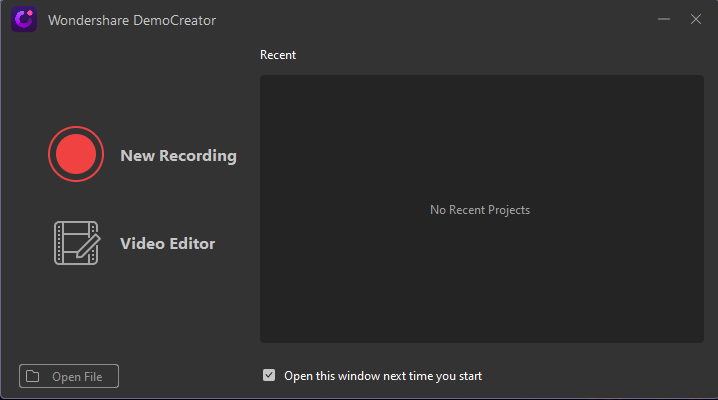
• Download Wondershare DemoCreator from their website. It is free to download. Once you have downloaded the software, install it on your computer and launch it. Once your software is ready; you have to prepare your screen for recording. Click on the “New Recording” icon to start your screencast recording.

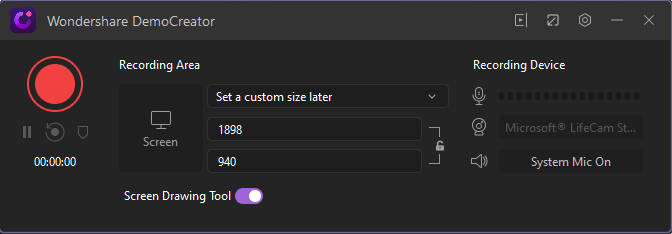
You can choose for your whole screen to record or part of the screen by going on the screen settings. Frame rate and resolutions can also be customised.

Step 3 – Prepare your voice for recording
Your voice needs to be clear while recording a screencast. Therefore, use the microphone properly. Make sure the Mic is connected correctly to your computer, and the audio is clear. You can use computer audio or an external Mic. The default option of this software will capture both, but you can choose to select either. After doing settings related to the Mic you need to click on the “Capture” button at the bottom right corner and then video recording will be started.

Step 4 – Editing your video
Once your screencast is ready, you can add extra touches to it. Wondershare DemoCreator is feature-rich software and can transform your video quality. There are many editing tools to choose from, out of them, few are explained below:
• Transition effect – Once you have imported your screencast in the timeline, you can add the effect. You can add various transitions such as changing the slides or merging two videos. Fade, swirl, erase, dissolve, and evaporate etc. These can break the monotony of your video and keep the viewers engaged for long.

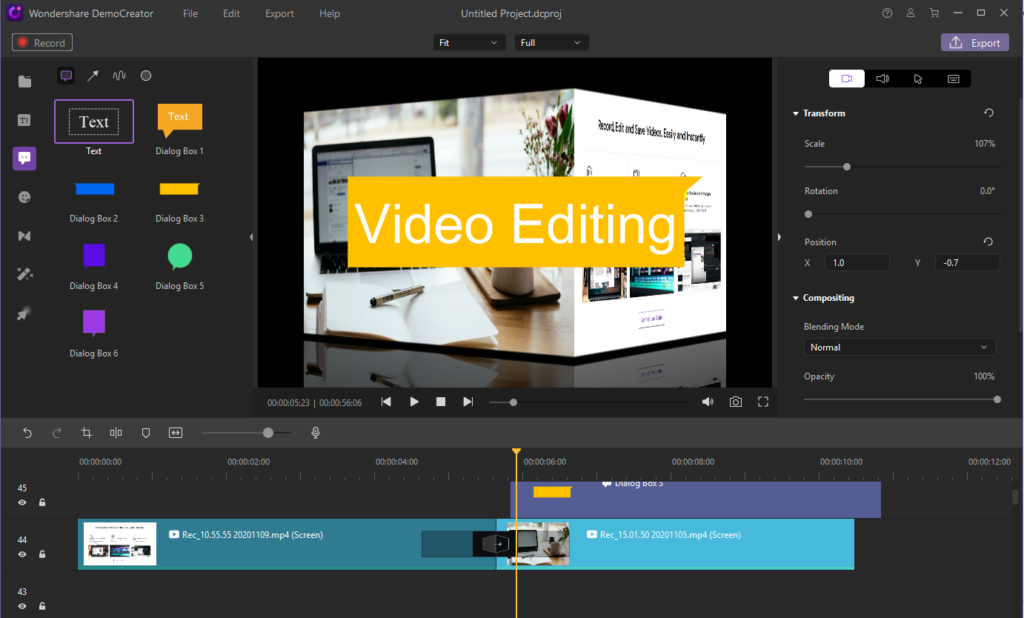
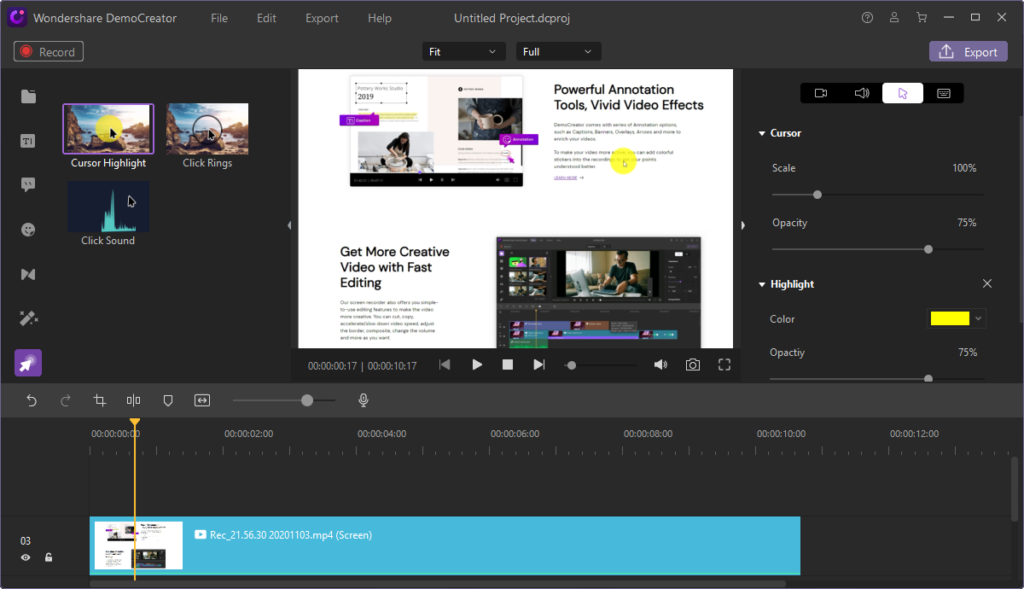
• Cursor effects – Adding this effect in the Video will help attract the viewers’ attention. With three types of cursor effects to choose from – Click Rings, Cursor Highlight, and Click Sound, you can make the viewer follow your actions through it. This effect will improve their concentration.

• Annotation tools – Annotations makes the video more interactive and informative. By inserting elements such as captions, overlays, banners, arrows, you can add important notes to them using different fonts and colours.

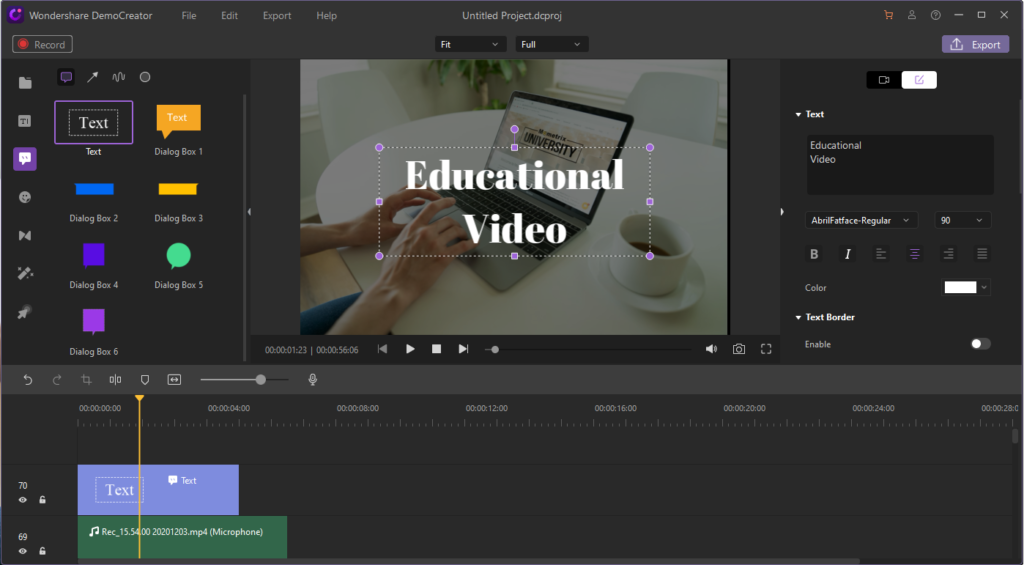
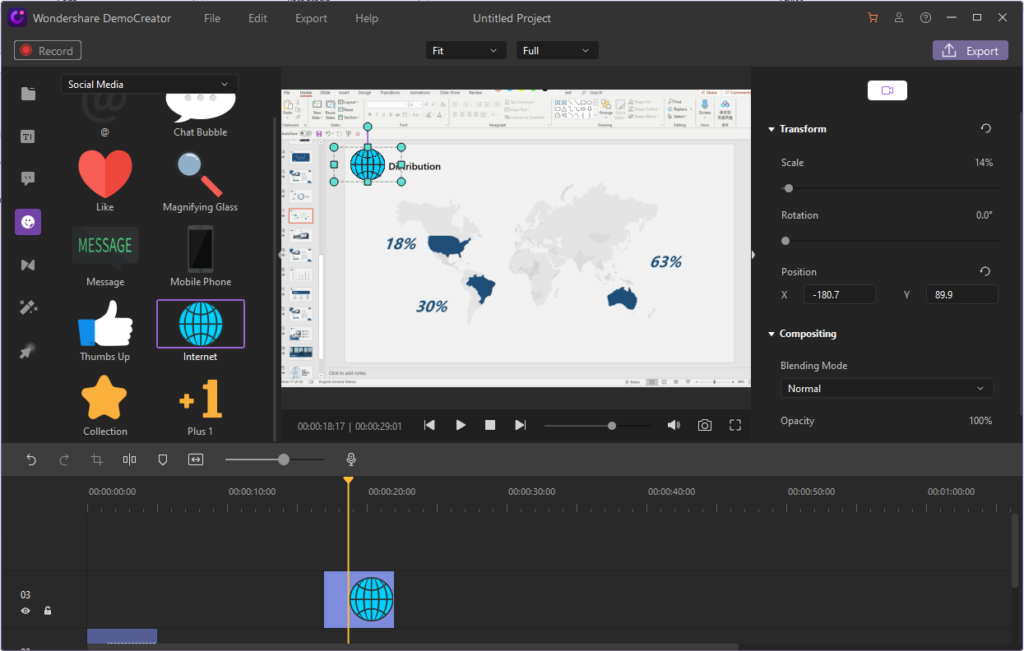
• Stickers and captions – The software provides you with many stickers for different occasions such as games, gestures, annotation, Education. Caption tools are also provided with which you can add captions and express your ideas better. You can add captions, change font size, text border etc.

Step 5 – Export your video
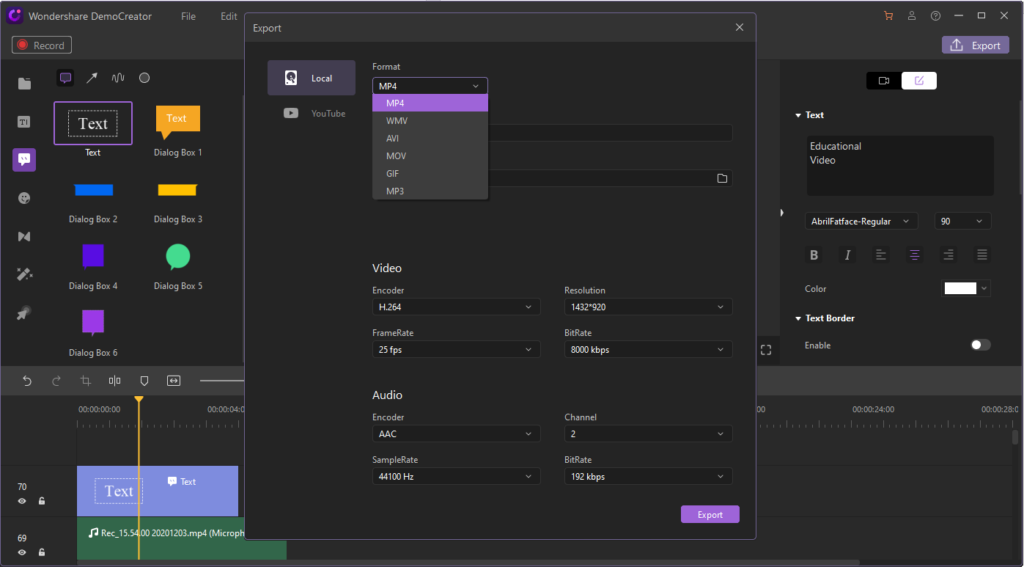
After finishing the editing, you can export your video in different file formats such as MP3, MP4, GIF, etc. Select the “Export” button on the top. You can also name your video and choose the location of the exported file.
There is also an option of directly uploading your screencast on YouTube for the viewers to see it.

Overall:
Wondershare DemoCreator is an all-in-one screen recorder and video editor. There are many new functions added in the latest version. With the new screen drawing tools in DemoCreator, you can easily write and draw on the recording screen in real-time, use the mouse spotlight to highlight any key point on your screen clearly and add audio fade in and fade out effects when editing. To know more about how to download the software and get more details you can always visit their official website.