

WhatsApp is one of the most popular messaging apps in the world with over 2 billion monthly active users. The reason why people prefer it is the simplicity and useful features.
You can share images, videos, share live location do more. All of this can be saved over your Google drive via cloud backups, and also in the local storage of your device.
However, if you are switching from an Android device to an iOS device and worried about losing your important chats, then this article is a must-read for you. Why? Because we will be sharing the quickest and easiest method to transfer WhatsApp from Android to iPhone easily.
For making this possible, we will be using MobileTrans, a feature-packed software without which, this won’t be possible. So without waiting further, let’s get started.
Table of Contents
What is MobileTrans?
MobileTrans is a perfect software for transferring data between two devices of the same or different platforms easily. With MobileTrans you can transfer data from your Android device to iPhone and vice versa.
You can transfer songs, videos, messages, apps, and even contacts. Moreover, it is even compatible with Windows Smartphones.
The best part about MobileTrans is that you can use it to transfer WhatsApp from Android to iOS without losing any chat or its media files. Let’s hold back and explore the features of this software, followed by a quick guide on transferring WhatsApp backup from android to ios.
Features of MobileTrans
1. Phone to Phone transfer
Want to shift from one device to another but not sure how to move the data? With MobileTrans you can transfer data from one device to another easily. You can transfer songs, games, contacts, photos, notes, pdfs, total of 17 types of data from one device to another.
2. Backup phone to PC
You can create a backup of your Android or iOS smartphone on your PC or MAC easily with the help of MobileTrans. Apps, images, contacts, music, voice memos, ringtones and more, can be included in the backup. You can later use this backup to restore it on a different or same device.
3. Restore backup
You can selectively restore backup on your device without having to reset it completely. Once you have created a backup, you can restore a part of it such as contacts, apps, music, or more.
4. Transfer WhatsApp
You can transfer WhatsApp from one smartphone to another easily with the help of Mobiletrans. It lets you create a backup of your WhatsApp chats and media and restore it on a new device, which can either be an Android or an iOS, or even a Windows phone.
How to Transfer WhatsApp from Android to iOS Using MobileTrans
To get started with WhatsApp transfer, download MobileTrans on your PC or Mac. The download links are here for:
- Download MobileTrans for your system and install it. Once done launch it and select “WhatsApp transfer”, make sure you have already connected your devices with your PC/Mac before you begin with the process.

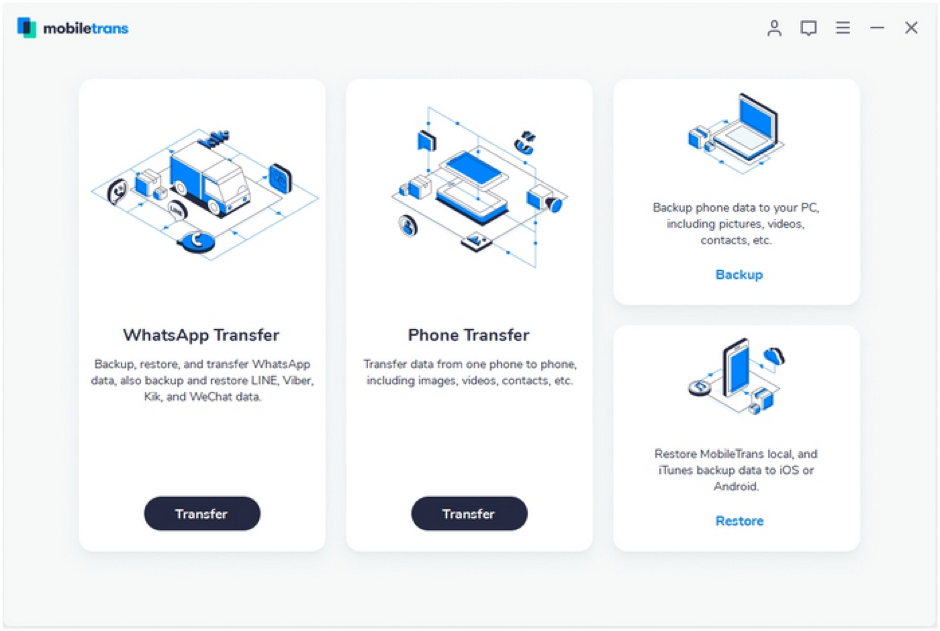
- MobileTrans allows you to transfer Whatsapp, Line, Kik, and WeChat from one device to another. For now, we have to transfer WhatsApp, so you need to select WhatsApp and then select the transfer WhatsApp messages option.
- If both of your devices are connected with the PC/MAC, MobileTrans will detect them and show you this screen(image below).

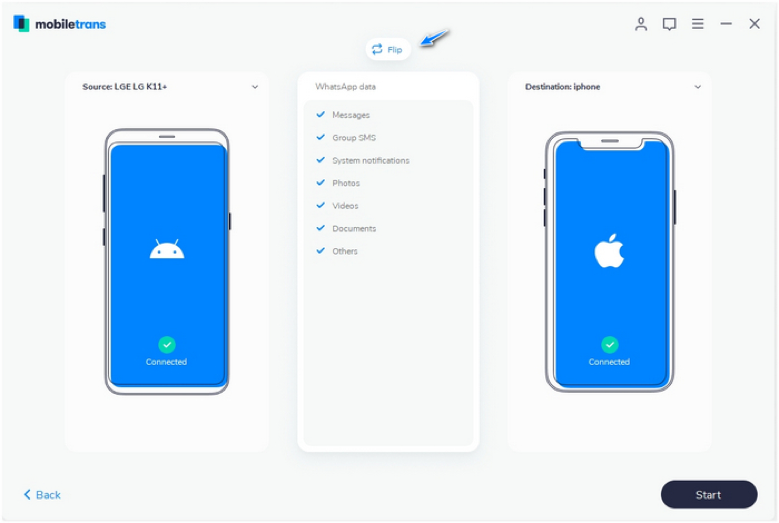
- Source refers to the device that currently has the WhatsApp data and destination device is the device where data will be transferred. Make sure it is correct. But if the destination and source devices are wrong, click on the flip option and change it.
- Once done, click on the start button below and let the process begin. If there is existing WhatsApp data on the destination device, it will be automatically be overwritten by the new data.
- After a successful transfer of WhatsApp chat, media, and other documents, you will receive a notification and then you can remove the device successfully.
Transfer WhatsApp data from Android to iPhone Without PC
If you don’t have a PC and want to transfer WhatsApp data from an android device to iPhone, use Wutsapper.
Wutsapper is an android app that allows you to transfer WhatsApp data from android to iPhone without a PC. You’ll need an OTG cable to connect two phones with each other. Follow this procedure to transfer WhatsApp data from Android to iPhone using Wutsapper:
- Search “Wutsapper” on the play store and download the app on your android phone.
- Make sure the second phone has a WhatsApp account created with the same number whose data you want to transfer from android to iOS.
- After connecting both the phones with OTG cable, launch the app and tap on trust on both devices when it appears.
- Wutsapper will start parsing your WhatsApp data, and once done click on next to start transferring the data from android to iOS.
- That’s it. In this way, you can transfer data from your android device to your iOS device without any issues.
Pricing of MobileTrans WhatsApp Transfer
MobileTrans software is available for Windows and Mac systems. Pricing has been divided into various categories, including business and student plans.
Windows Version
The lifetime plan for the Windows system is available at $49.95 and the yearly plan for $29.95. There is also a 3-year plan available at $39.95, and all of these plans support 1-5 mobile devices and 1 PC.
Mac Version
The Mac version of MobileTrans Whatsapp transfer is available at $39.95 for one year, $49.95 for three years, and $49.95 for a lifetime. All of the plans support 1-5 mobile devices and 1 Macbook.
In Context
Transferring WhatsApp data from android to android is an easy process, all thanks to Google drive backup and manual backups. But the same process becomes a little complicated when it comes to transferring data manually. Therefore, we suggest you to use MobileTrans for transferring WhatsApp data between android and iOS.