The first thing you need to understand is that even if your Mac’s apps crash, despite upgrading your computer to the latest software, there is no reason to panic just yet. There is a strong chance that the problem is a simple and temporary one and while waiting it out is a possible option, we wouldn’t advise that because there is always the other chance that it could be indicating a serious problem. It is for this very reason that we have put together this article and will dive into a number of reasons and possible solutions that you can take to help fix or prevent your Mac’s apps from crashing.
Also, before we get started, it is best that you disconnect any external devices that you may have connected to your Mac, eg. usb hub with long cable to avoid any issues or file loss, in the event that a restart is required.
Table of Contents
Application and macOS compatibility
One of the main reasons why your app may be crashing is that it simply does not work with your Mac’s current or new operating system. In other words, the application’s developers may have not yet updated or upgraded it to be functional with the new OS system requirements. If we take macOS Catalina for example, Apple stopped supporting 32-bit applications and required developers to upgrade their apps to a 64-bit infrastructure. As a result, if the relevant app does not meet those standards, then that app will not successfully launch in the new macOS Catalina and Big Sur systems.
Now, if you are curious to know which apps are compatible with the new macOS but can’t be bothered with sorting through the endless list, then you can rest assured that majority of apps are functional with the new systems 64-bit requirement. You can also confirm if the app in question meets these standards, by opening the application’s About page and confirming when the developers last updated it. If it is updated then compatibility isn’t the problem. If it isn’t, then you have your answer as to why the app keeps on crashing. If you still desperately need the app for a certain task, but it is still incompatible and hasn’t been updated, then the only thing you can do is to try and find a compatible alternative. However, if any of your apps crash and you have checked to confirm whether or not they are macOS compatible, then there has to some other type of gremlin behind the problem.
1. If It Crashes On Launch:
If the app in question crashed during start-up, then you should check the developer’s website to see if the application you are running is the latest version. In some cases, applications can be working fine and suddenly start crashing unexpectedly and that is something that you shouldn’t ignore, even if it does not happen often. When this happens, you will get a notification on your Mac. It will come with a message similar to the one below:
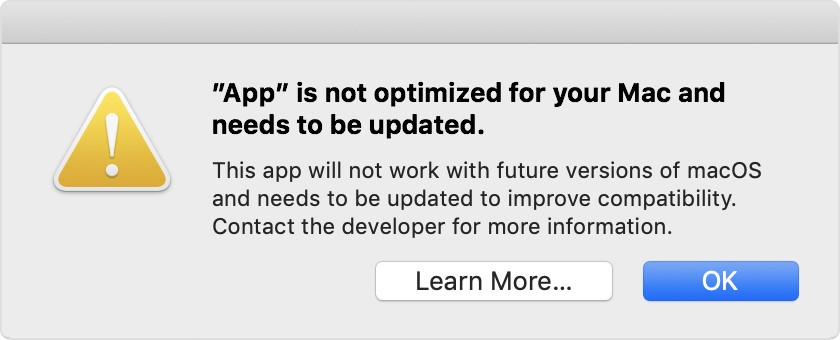
If you see this message then it is likely that your app is simply out of date and you might as well uninstall, because it is not going to work anymore, unfortunately. Moreover, if we are being honest, uninstalling is your only option at this stage and even though it can be frustrating when you are forced to remove an application that used to work perfectly, it’s still your only possible move. It will be better if you simply take it a sign that it’s time to find a new alternative software instead to help you accomplish your tasks.
2. If It Crashes While Working:
In the event that the application crashes while you are in the middle of conducting some work, then it’s possible your Mac is lacking sufficient processing power or memory space to keep the app running optimally. You can usually make use of third party apps like CleanMyMacX or iStat Menus to keep track of how much space and RAM power your device is currently running under. They will let you know what files or apps you need to get rid of to better optimise your Mac’s performance. You should also disconnect any extra macbook accessories you have attached, to check if that reduces the amount of stress your Mac is under.
3. If It Stops Your Mac From Launching Properly:
It is possible that the app in question is among your list of start-up apps. For this unfamiliar, these are apps that usually open automatically once your device is booted up. In the event that your Mac freezes during while restarting, you can attempt to remove the application from your Mac’s login items. Simply head to System preferences, then head to Users and Groups. Select your user profile and head to “Login items” to remove the troublesome application.
Conclusion:
That should summarise all the possible options you have available to you. In the event you that you come across or are currently experiencing, application malfunction, keep in mind that there are plenty of fish in the sea. And while it can be a very stressful affair when your favourite app is being unresponsive, there are still hundreds of thousands of apps to choose from in the market. So, you can always find an even better alternative, if your preferred app refuses to cooperate.